
How I Organize My Next.js Projects
When I start a new Next.js project, one of the first things I think about isn't the UI or the database—it's how I'm going to organize the code.
A project can start with just a few files, but it rarely stays that way. As new features are added, it's easy for folders to become cluttered and for related code to end up scattered throughout the project. I've experienced that before, and it quickly becomes difficult to know where things belong.
Over time, I've settled on a folder structure that helps me keep projects organized without making them overly complicated. It's not the only way to structure a Next.js application, but it's the approach that works best for me.
What I Optimize For
When organizing a project, I try to keep a few simple goals in mind.
First, I want files to be easy to find. If I need to update a feature six months later, I shouldn't have to search through dozens of folders.
Second, I want related code to stay together. Instead of placing every component, hook, and utility into large global folders, I prefer grouping files that belong to the same feature whenever it makes sense.
Finally, I try to keep the structure simple. I don't believe in creating folders just because other projects do. Every folder should have a clear purpose.
My Folder Structure
A typical project usually starts with something like this:
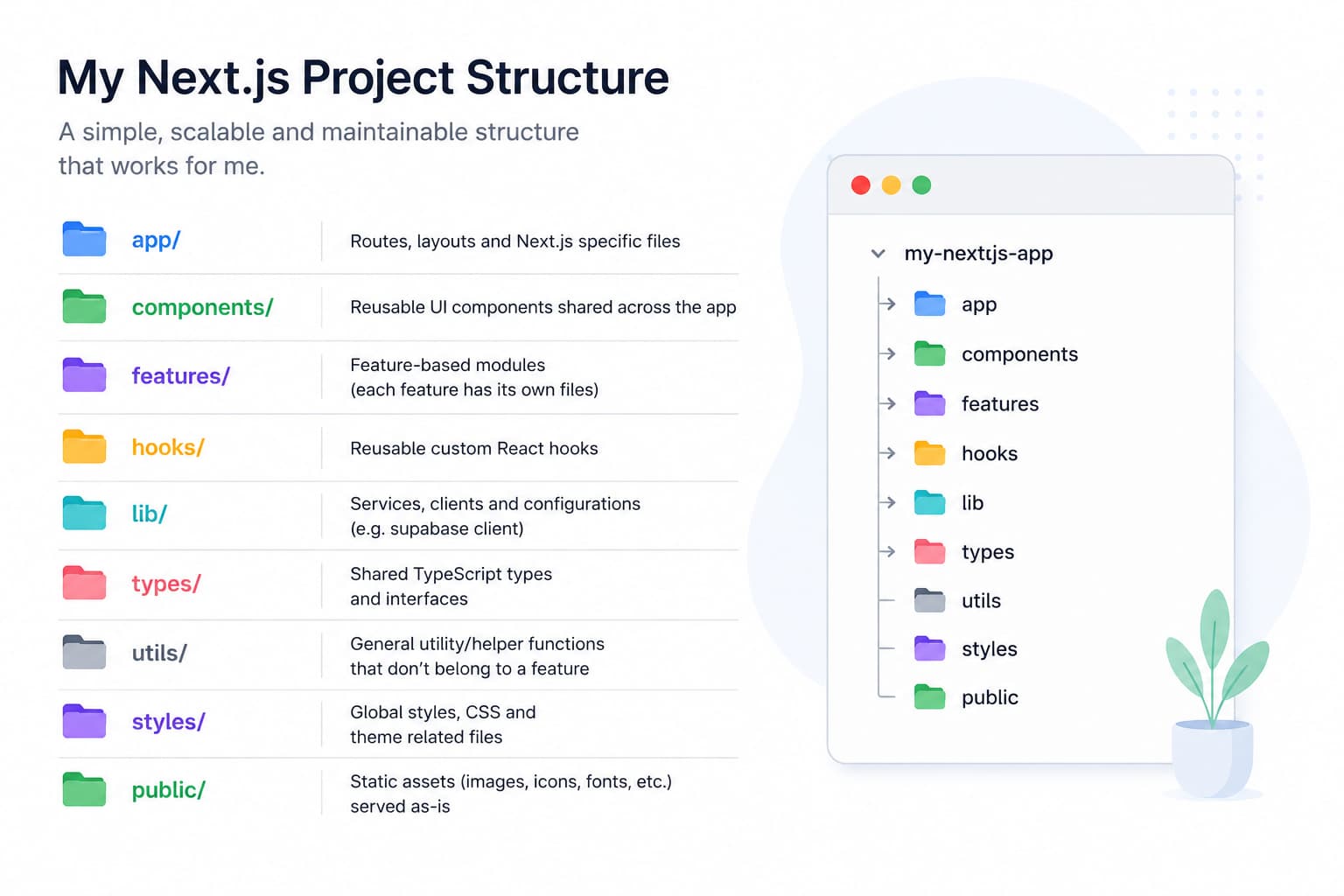
The structure isn't very large, but each folder has a specific responsibility.
app
The app directory contains pages, layouts, loading states, error pages, and route-specific files. Since Next.js App Router already defines the application's routing, I keep this folder focused on routing rather than business logic.
components
The components folder contains reusable UI components that can be shared across multiple features.
For example:
Button
Input
Card
Modal
Table
Badge
These components don't know anything about the business logic of the application. Their only responsibility is presenting the UI.
features
This is probably my favorite folder.
Whenever a part of the application grows beyond a few files, I move everything related to that feature into its own directory.
For example:
features/
├── dashboard/
├── jobs/
├── authentication/
└── settings/
Each feature can contain its own components, hooks, API functions, validation, and utilities.
Keeping related code together makes it much easier to understand the project.
hooks
I place reusable custom React hooks here.
Examples include:
useDebounce
useLocalStorage
useMediaQuery
useOutsideClick
If a hook is only used by one feature, I usually keep it inside that feature instead of moving it into the global hooks folder.
lib
The lib folder contains shared services and configuration.
Examples include:
Supabase client
Database configuration
Authentication helpers
Utility libraries
Third-party integrations
These files are used throughout the application but aren't directly related to the UI.
utils
The utils folder is reserved for small helper functions that don't belong to any particular feature.
Examples include:
Formatting dates
Formatting currency
Slug generation
String helpers
lib/
├── supabase/
├── auth/
├── env.ts
└── analytics.ts
utils/
├── format-currency.ts
├── format-date.ts
└── create-slug.ts
types
Rather than scattering TypeScript interfaces across the project, I keep shared types in one place whenever they're used in multiple features.
This helps avoid duplication and keeps types easier to maintain.
styles
Explain whether you use it for global styles, design tokens, typography, or CSS modules shared across the application. Also mention that Tailwind projects may not need a large dedicated styles directory.
public
Explain that it contains statically served files such as icons, downloadable files, and local images. Alternatively, remove those directories from the main diagram if you do not consider them part of your architectural recommendation.
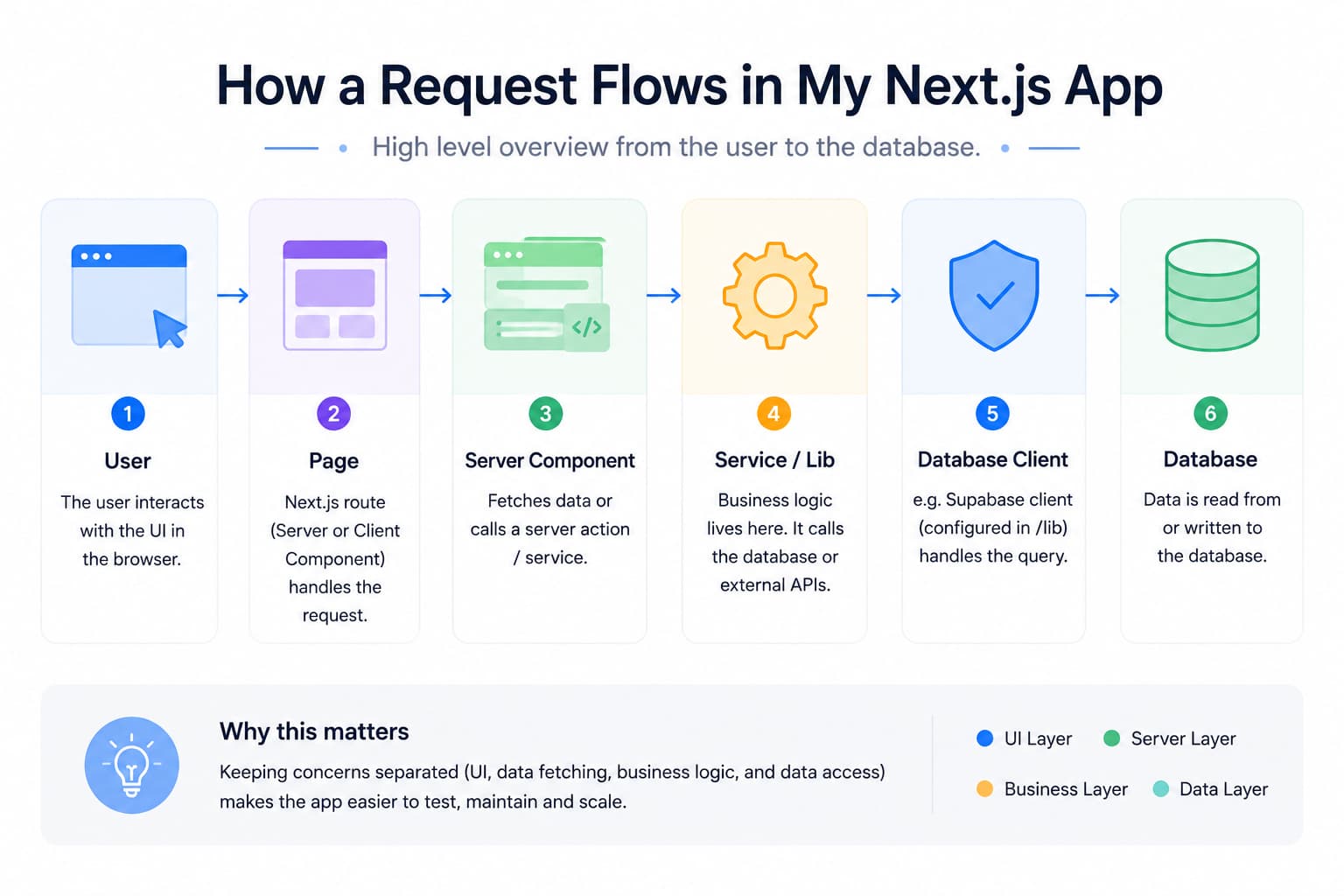
Why I Like Feature-Based Organization
One thing I've changed over the years is moving away from organizing everything by file type.
Instead of having huge folders filled with dozens of components or hooks, I prefer grouping files by the feature they belong to.
For example, if I'm working on the Jobs page, I'd rather find everything related to jobs inside one folder than jump between components, hooks, services, and utils.
As projects grow, this approach feels much easier to maintain.
Final Thoughts
I've reorganized my projects more times than I can count, and I'm sure this structure will continue to evolve as I learn new patterns and build larger applications.
The biggest lesson I've learned is that there isn't a perfect folder structure. The goal isn't to follow a specific convention—it's to make your project easier to understand, easier to maintain, and easier to work on in the future.
If someone opens your project for the first time and can quickly figure out where everything belongs, you've probably organized it well.